March 2022
Accessing FINPACK Legacy Credit Presentations
A new presentation text editor was introduced into existing FINPACK credit presentation templates last fall with the November 2021 FINPACK update (6.2.1 version ). Presentations created prior to this update are now termed ‘legacy presentations’. The following explains how legacy presentaions can be printed, accessed, and modifed.
A new feature with this year’s update is the ability to print a presentation to a *.DOCX file (Microsoft Word); this is available in the print dialog of a presentation (select DOCX instead of PDF).
Legacy presenations can be accessed through Tools + Options + File Settings, click on the arrow next to File Settings (right-facing arrow turns to down arrow), then click on Presentations.
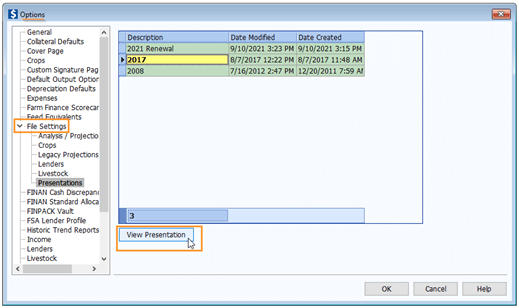
Next, highlight a particular presentation and click on View Presentation.
When viewing a presentation, the following actions can be taken.

Click Show hidden fields to display hidden text and/or indent tags. (Examples of hidden text would be headings or text that appear ‘hidden’ by dark text on top of a dark background. Examples of indent tags would be ‘<DataTable07>’, ‘<LoanRequestTable01>’, or ‘<CollateralTable03>’. These indent tags can sometimes be strung together.) As noted at the top of the screen, hidden text should be corrected with the assistance of FINPACK Tech Support.
There is also the ability to fix hidden text (FINPACK Tech Support should still be involved if hidden indent tags exist). After displaying hidden blacked-out text via the Save hidden text button, click the Fix blacked-out text button to automatically turn the background to white, thus displaying the text for all hidden fields.
Any changes made to the presentation can be saved by clicking Save corrections. A presentation can be printed to a PDF or DOCX file. Note: Printing the presentation to a DOCX file will not include any Optional Attachment reports.
Reading the PDF/DOCX file
When printing the presentation to a PDF file, follow normal Adobe Acrobat steps to open and print the file. When printing the presentation to a DOCX file, follow normal Microsoft Word steps to open and print the file.
FINPACK+
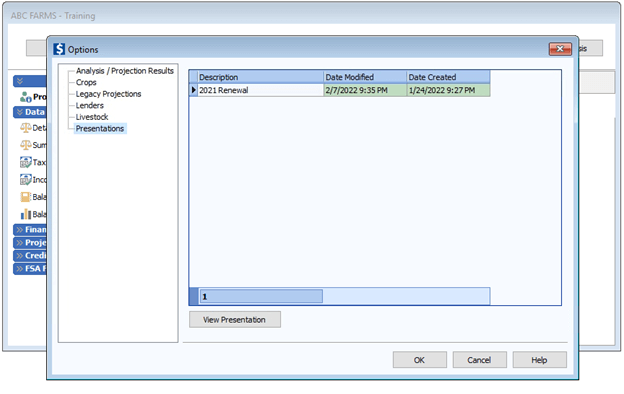
For FINPACK+ users wanting to view legacy presentations, open the Credit Analysis section of a customer file, click on Tools + Options, then click on Presentations. Follow the same process as described here to view, modify, and print a particular legacy presentation.