

FINPACK Credit Analysis allows users to consolidate the balance sheets or tax forms from several different data files into a consolidated file. For example, a farm or business may have multiple entities for tax reasons, but these entities are controlled by the same owner(s). For analysis purposes, the lender would prefer to consolidate the information for these different entities. (Ex: A farm has an entity that owns the assets, another entity that operates the farm and leases the assets from the first entity, and finally a personal balance sheet. Both are owned by the same person, so consolidating the financial information for both entities provides the best complete financial information for the owner.) A best practice is to consolidate Detailed Balance Sheets or Tax Forms from the different entities into a new Credit Analysis data file, in its own customer profile in FINPACK+. It is recommended to include ‘consolidated’ in the customer profile and related Credit Analysis file name to indicate it is a consolidated file. This consolidated file will be used to underwrite and analyze the global borrower in FINPACK+.
Identifying Related Entities
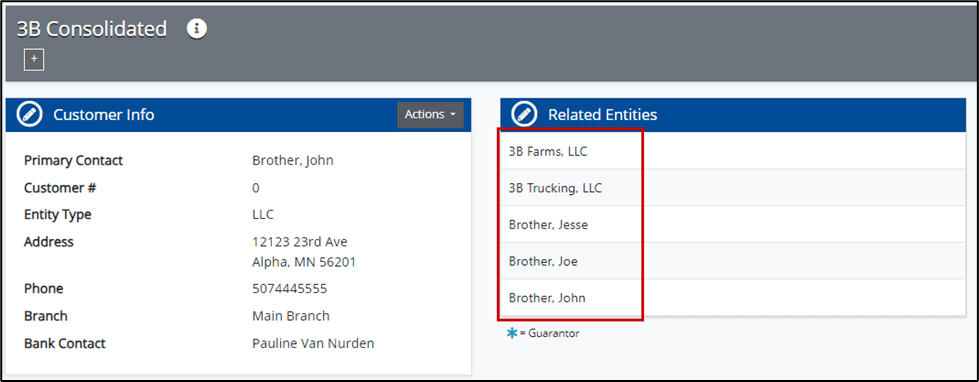
The consolidation process in FINPACK+ begins by identifying the related entities of the global borrower. In this example, our global analysis includes a farming entity, a trucking entity, and three individuals who are owners/guarantors. The related entities are added to the consolidated customer profile by utilizing the pencil icon in the Related Entities dialogue box. Related entities can be edited at any time as changes are warranted for the global borrowing relationship.

Creating the Credit Analysis File
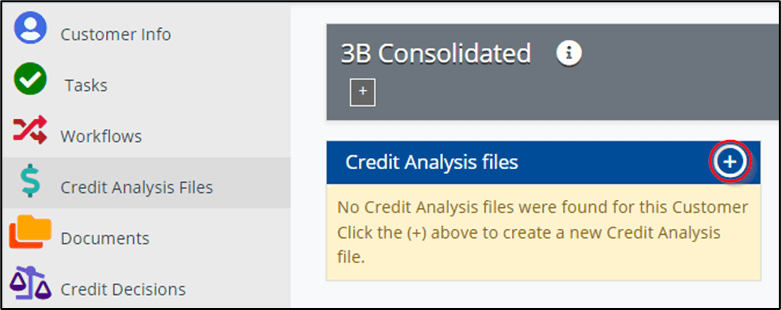
Next, the Credit Analysis file for the consolidated borrower needs to be created. This is the same process as adding a Credit Analysis File to a customer profile.
When adding the Credit Analysis File, select the ‘Create New’ radio dial, ensure the file name is correct, and select the file type. Then click ‘Continue’. (An existing Credit Analysis file can be uploaded if your institution is moving to FINPACK+ from FINPACK installed and there is an existing consolidated credit analysis file for the global borrower.)
This creates and launches the new consolidated Credit Analysis file in a browser tab. The data sources will be consolidated into this global borrower file.
Consolidating Information
First, a fiscal year-end or period-end Detailed Balance Sheet or a fiscal year-end Tax Form is needed for each entity. (These Detailed Balance Sheets or Tax Forms are contained in the respective entity or individual data files.) In the newly created consolidated file, a Detailed Balance Sheet or Tax Form is created with the same date. The Detailed Balance Sheets or Tax Forms from the entities and individuals will be consolidated into this new consolidated FINPACK Credit Analysis file.
NOTE: The example outlined below steps the user through consolidating a Detailed Balance Sheet. The procedure for consolidating Tax Forms is the same.
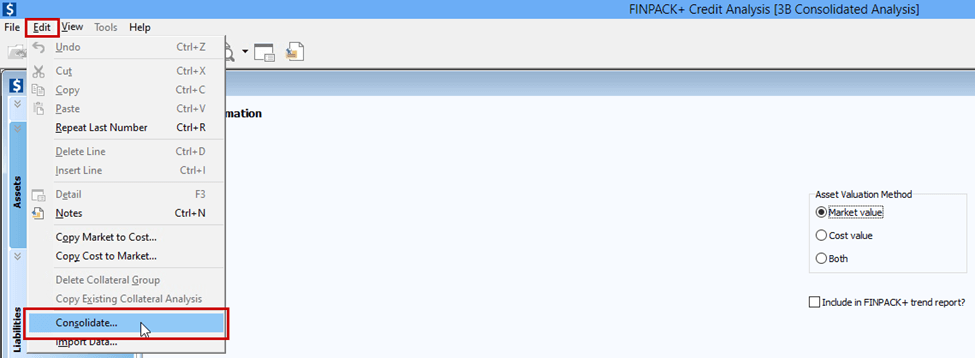
Start by creating a new Detailed Balance Sheet that matches the date of the other balance sheets to be used in the consolidation. In this blank detailed balance sheet, select Edit + Consolidate.
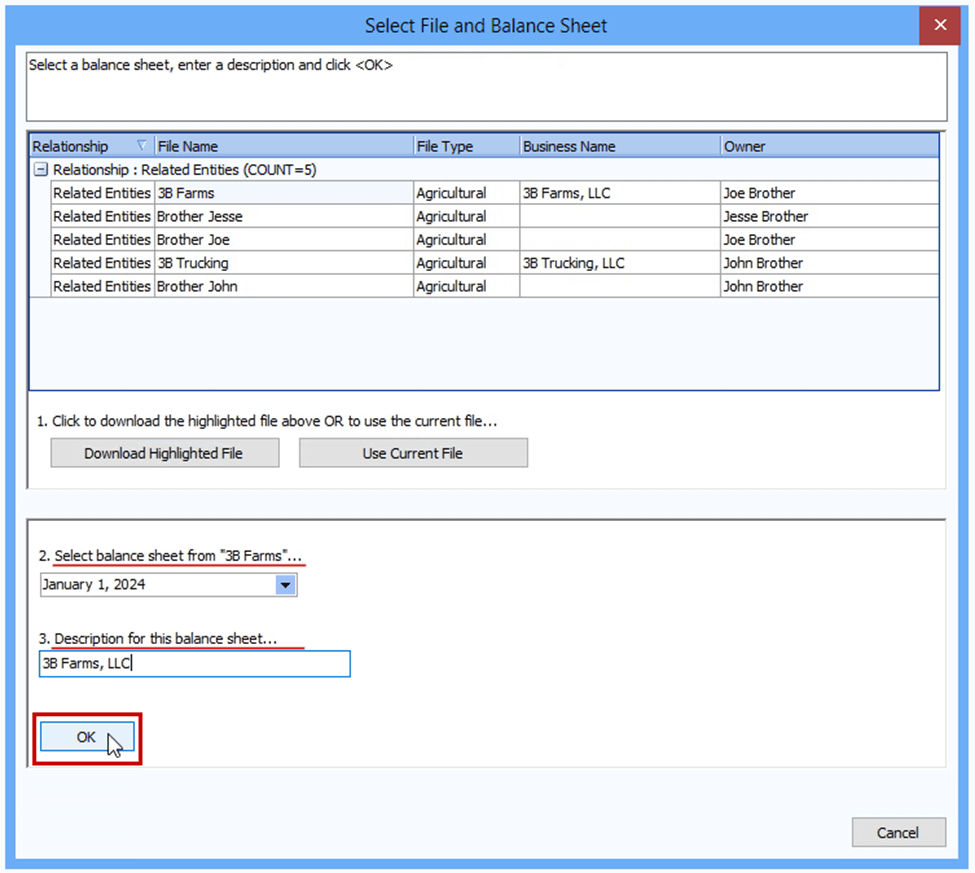
A dialog box opens to assist with the consolidation process. The related entities for the global borrower are shown. Highlight the first individual or entity to be consolidated into the detailed balance sheet. Then click ‘Download Highlighted File’ below. Notice only those customers identified as related entities are accessible here. There is not an option to add an additional related entity here. If an additional related entity is needed, this will need to be linked in the consolidated customer information. Then the consolidation process in the Detailed Balance Sheet can be continued.
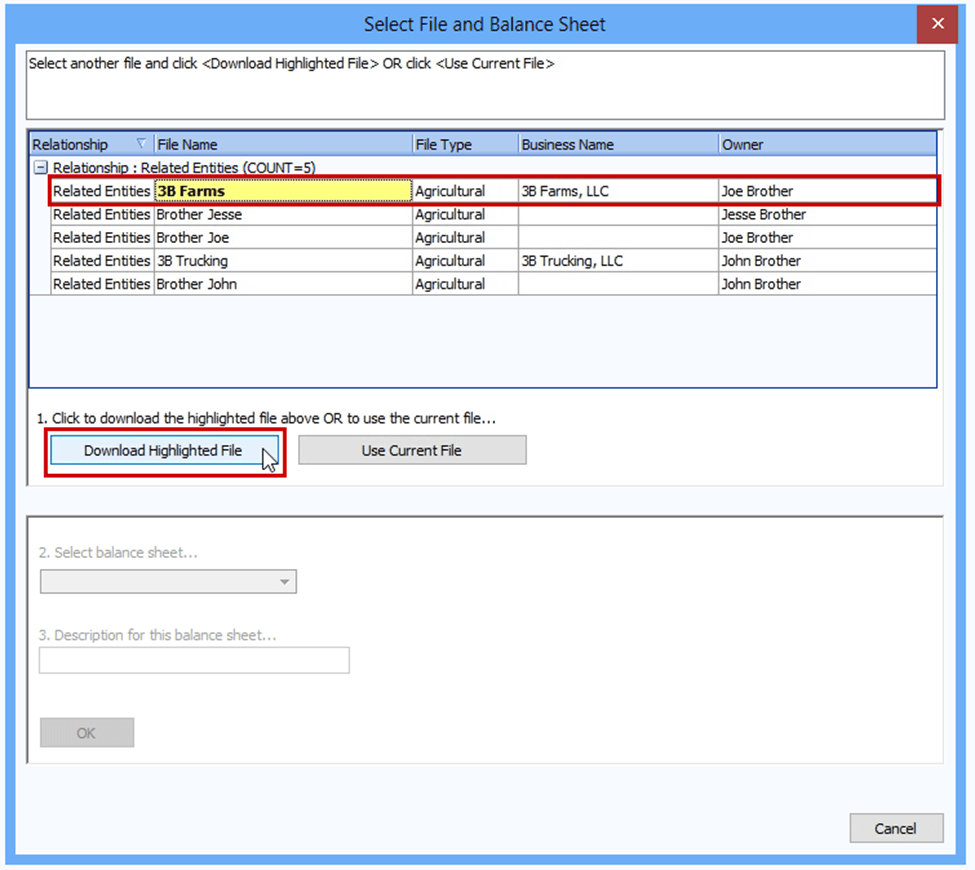
This takes a moment for FINPACK+ to access the selected file. In this example, the Credit Analysis file for 3B Farms, LLC was selected. Once accessed, the appropriate balance sheet is selected from the drop down list in Step 2. and a description is added in Step 3. This short description will be added to indicate the source of assets and liabilities in the consolidated detailed balance sheet. Once these steps are completed, click ‘OK’.
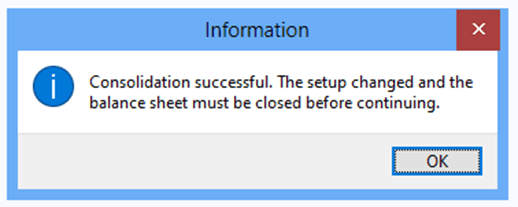
Upon completing the consolidation, a message appears explaining the status of the consolidation. The user is informed of any errors needing attention. The balance sheet must be closed before continuing any additional consolidations or data entry.
Repeat this process as many times as necessary to complete the consolidation for all entities and individuals to be included in the detailed balance sheet for this global analysis. The entity and individual balance sheets to be consolidated here should be the same date.
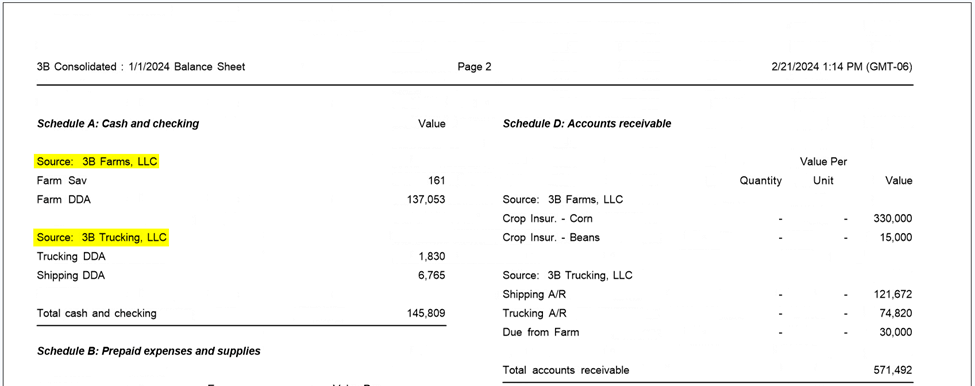
Once all entities are consolidated, the Detailed Balance Sheet output will contain total information on the Summary page (page 1). The Schedules (page 2 and beyond) will have details for each entity and individual in the consolidation.
Reviewing the Consolidation
Here is a sample consolidated Detailed Balance Sheet for the 3B Consolidated file. This consolidated file includes 2 entities and 3 individuals: 3B Farms, LLC; 3B Trucking, LLC; and the personal assets of Joe, Jesse, and John Brother.
Highlighted below is the Source of information for Schedule A: Cash and checking.
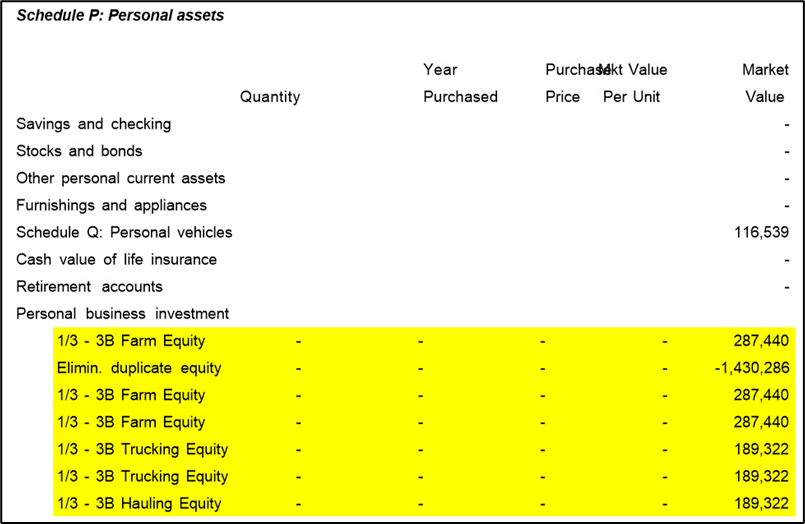
Finally, make any necessary edits or eliminations on the consolidated data. A common item to address is equity entries included on the Detailed Balance Sheets of individuals that are then also contained in the consolidation.
In this example, the individual owners all list 1/3 of the equity of the farm and trucking operations on their personal balance sheet. Therefore, this needs to be edited, or total equity on a consolidated basis will be overstated. In this example, the equity line entries under Personal Business Investment can be deleted. A better practice is to include negative, offsetting entries in the schedule. The example below uses this offsetting approach. The input entry is shown as well as the corresponding detailed balance sheet output.
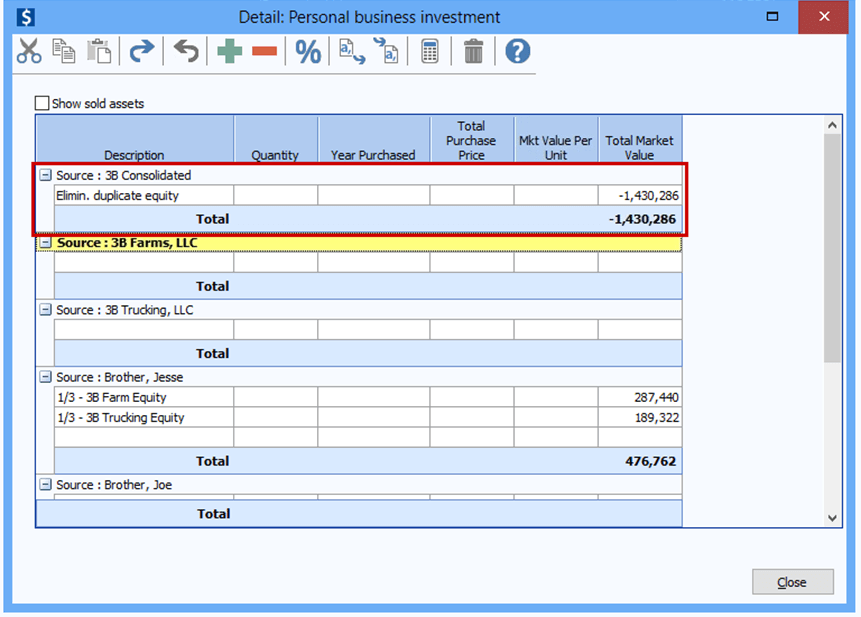
Corresponding output:
Connect with FINPACK
Don’t forget to follow FINPACK on Facebook, X, and Instagram, or connect with us on LinkedIn, and be sure to subscribe to FINPACK News email updates.

Pauline Van Nurden is currently the Associate Director for the FINPACK Team. She has been with the team since 2017 as an Economist.
Prior to joining the FINPACK Team, she worked as a lender. This provides her valuable industry experience and knowledge in her work with FINPACK. Pauline holds a Master’s Degree in Agricultural Education and Bachelor’s Degree in Applied Economics, both from the University of Minnesota.